
How to use android phone as USB webcam :Simple steps to setup a USB WebCam
DroidCam – Use your Android phone as a wireless webcam or an IP Cam! by using DroidCam which is developed by Dev47Apps
To use Android phone as webcam you have to download following application .
Download
Mobile app : Android App-Droid Cam(Form App Brain) or Droid Cam(From market)
PC Software :PC client
Android SDK: Download
JDK :Download
After installing above software
 1: Connect the phone to the computer (normally via USB cable).
2: Go to run and run command adb devices should list your phone (eg. ‘HT1234xxx device’).
If you have any problem regarding run command please find the installation of sdk here
3:If your device listed successfully then
Run the command adb forward tcp:4747 tcp:4747 (where the first number is the port the PC client will use, and the 2nd – the phone app). Nothing should get printed.
NOTE: You must run this command every time you re-connect your phone. Right-click on the Windows client to automatically execute this command.
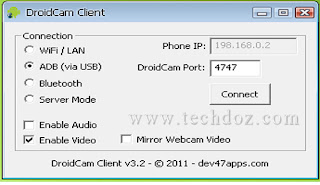 4. Run the phone app as you normally would. WiFi can obviously be off.
5. Run the PC client, choose ADB as connection method and click [connect]. Make sure you run step two, and the ports match, if you are having problems.
6. Enjoy your high resolution USB web camera
if you want to know how to make your android phone as a Wifi WebCam check this
To use Android phone as webcam you have to download following application .
Download
Mobile app : Android App-Droid Cam(Form App Brain) or Droid Cam(From market)
PC Software :PC client
Android SDK: Download
JDK :Download
After installing above software

2: Go to run and run command adb devices should list your phone (eg. ‘HT1234xxx device’).
If you have any problem regarding run command please find the installation of sdk here
3:If your device listed successfully then
Run the command adb forward tcp:4747 tcp:4747 (where the first number is the port the PC client will use, and the 2nd – the phone app). Nothing should get printed.
NOTE: You must run this command every time you re-connect your phone. Right-click on the Windows client to automatically execute this command.

5. Run the PC client, choose ADB as connection method and click [connect]. Make sure you run step two, and the ports match, if you are having problems.
6. Enjoy your high resolution USB web camera
if you want to know how to make your android phone as a Wifi WebCam check this


